Update: 9 September 2026
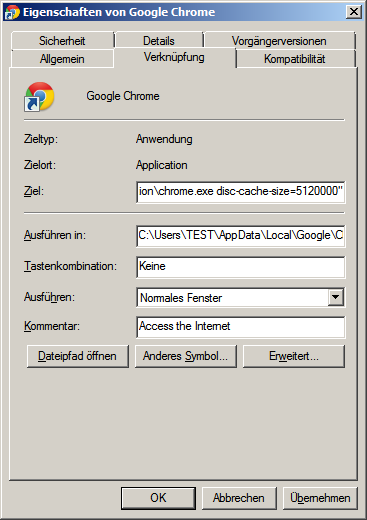
Do not copy the old disc-cache-size=512000 addition into a Chrome shortcut. Its spelling and typographic quotation marks are incorrect. 512000 bytes equal 500 KiB; this does not establish a speed improvement. Historical Chromium code names disk-cache-size. That does not prove support in any particular current Chrome version.
If you already changed the shortcut, save a copy. Restore only the part you clearly changed yourself, using its known previous value; do not guess the program path. Ask your administrator about managed devices.
For display problems, first save unfinished input, reload the page and compare another website. Only if that fails: open Delete browsing data from the three-dot menu, deliberately choose a time range and select only Cached images and files. Check and deselect every other category; this test leaves cookies, history, passwords and form data intact. Confirm only after checking.
Reopen the affected page and compare. The first load may be slower. If the problem persists, record the Chrome version, operating system and affected URL. Avoid repeated broad deletion or cache boosters. This is a limited diagnostic step, not a measured performance test.
Sources: Google Chrome Help; Chromium (2012).
Historical guide from 2013 – incorrect parameter; do not follow unchanged
Historical translation, revised on 9 September 2026. The following reproduces the 2013 report, including its incorrect technical advice; it is not a current recommendation. Use the correction above, not these old steps.
Google Chrome stores its cache locally on the hard drive: files associated with visited pages, such as images, JavaScript and HTML. The original report claimed that a full cache could make browsing new websites slower.
The original instructions proposed enlarging the cache as follows:
- Right-click the Google Chrome shortcut.
- Select Properties.
- On the Shortcut tab, find the Target field containing the path to chrome.exe. The historical example was:
C:\Users\TEST\AppData\Local\Google\Chrome\Application\chrome.exe - Click in the field containing the path to the *.exe file and press Home (Pos1 on a German keyboard) to move to the beginning of the line.
- Insert the following character before the drive letter:
" - Click in the same field and press End to move to the end of the line.
- Enter a space.
- Append the following historical, incorrect text. The original describes 512000 as the cache size in bytes:
disc-cache-size=512000" - Click OK to save the change.
The original then instructs the reader to start Chrome using the changed icon on the taskbar or desktop.