
To automatically start the cleanup of CCleaner, proceed as follows.
on Windows 7
- Start
- Programmes
- Accessories
- System programs
- Task planning
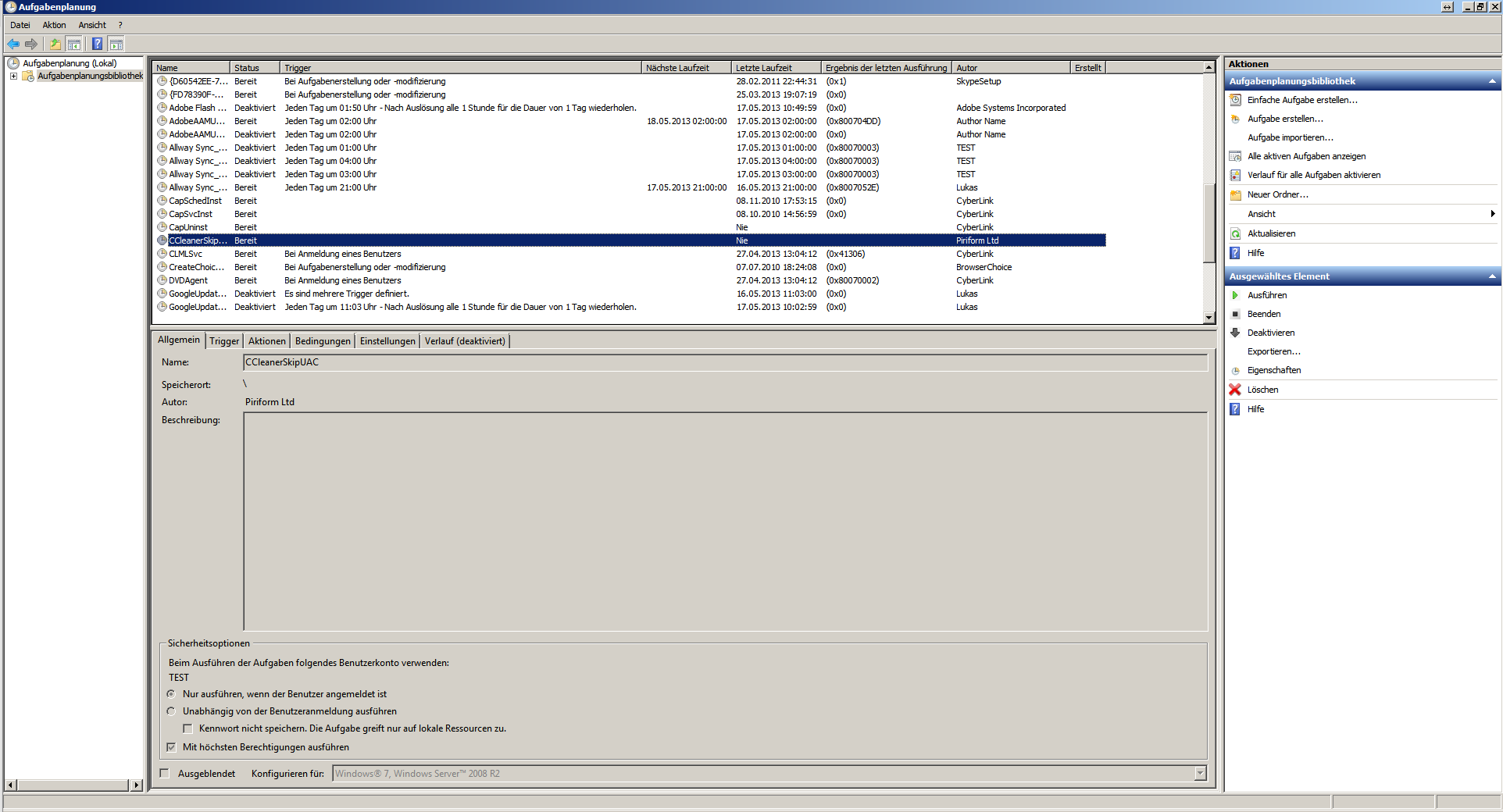
In the task planning overview you click on Task Planning Library.
By default, an entry is already created when CCleaner is installed on Windows 7. If it was not created, right-click Task Scheduling Library and add a new task. Then choose the path to ccleaner.exe from and as an argument you enter after C:\Programme\CCleaner\CCleaner.exe / car an.
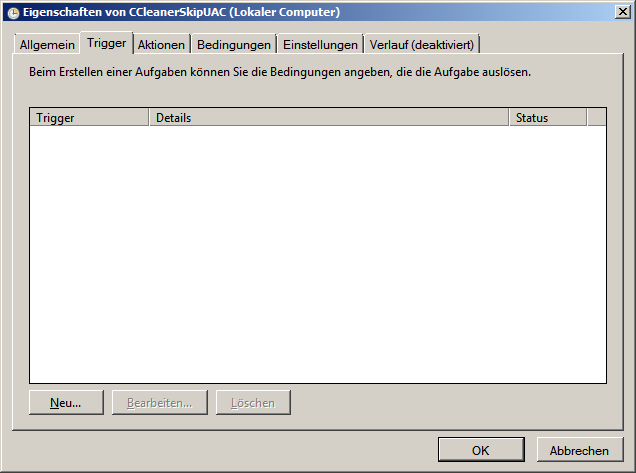
Then you double-click on the CCleaner entry in the task scheduling library. Now the following window opens.
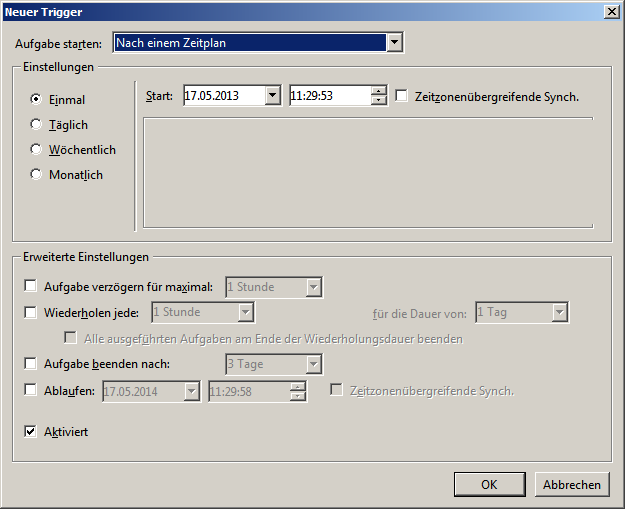
Now select the Trigger tab and add a new trigger. ATTENTION selects a time when your PC or notebook is the least busy.
Now you go to the Actions tab.
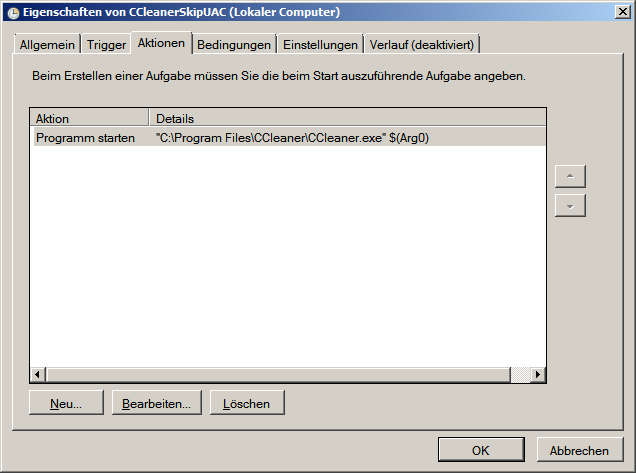
Now goes with a double click on Start program then opens the following window.
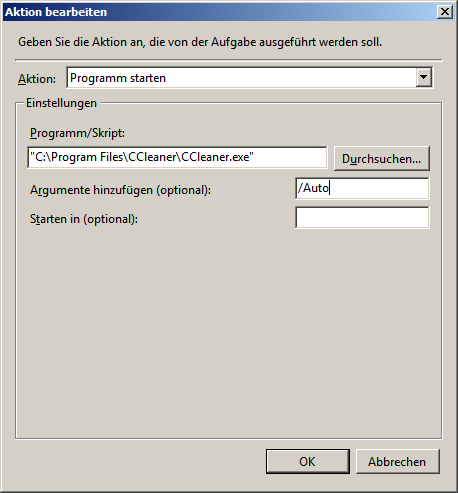
Then you write it down. Add arguments (optional): Field/car in.
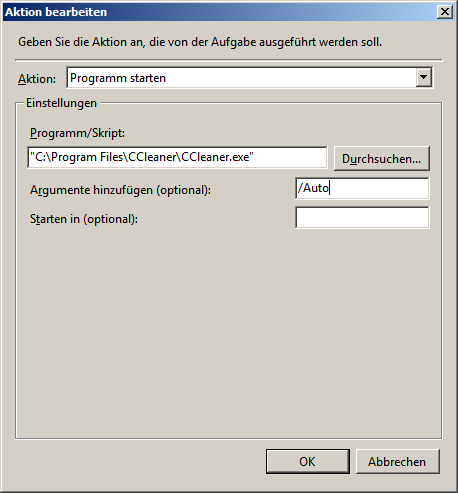 Now only confirm with OK and your CCleaner starts and cleans your computer at the time you choose.