
If you buy a new notebook you get this yes with the besch(eiden) Operating system Windows 8. If you now want to install Windows 7 instead of Windows 8 and you have a new Sony Notebook proceed as follows.
First you have to find the way into the bios, the manufacturers be it ASUS or Sony like to hide or disguise. We just have a Sony SVE171E13M In front of us and now want to install Windows 7.
First of all, set up Windows 8 because the device cannot automatically start from the Blu-ray drive. Grrrrrr
If Windows 8 is installed then turn off the notebook and use the button ASSISTAN Turn on

Now let’s navigate to this Start Bios Setup.
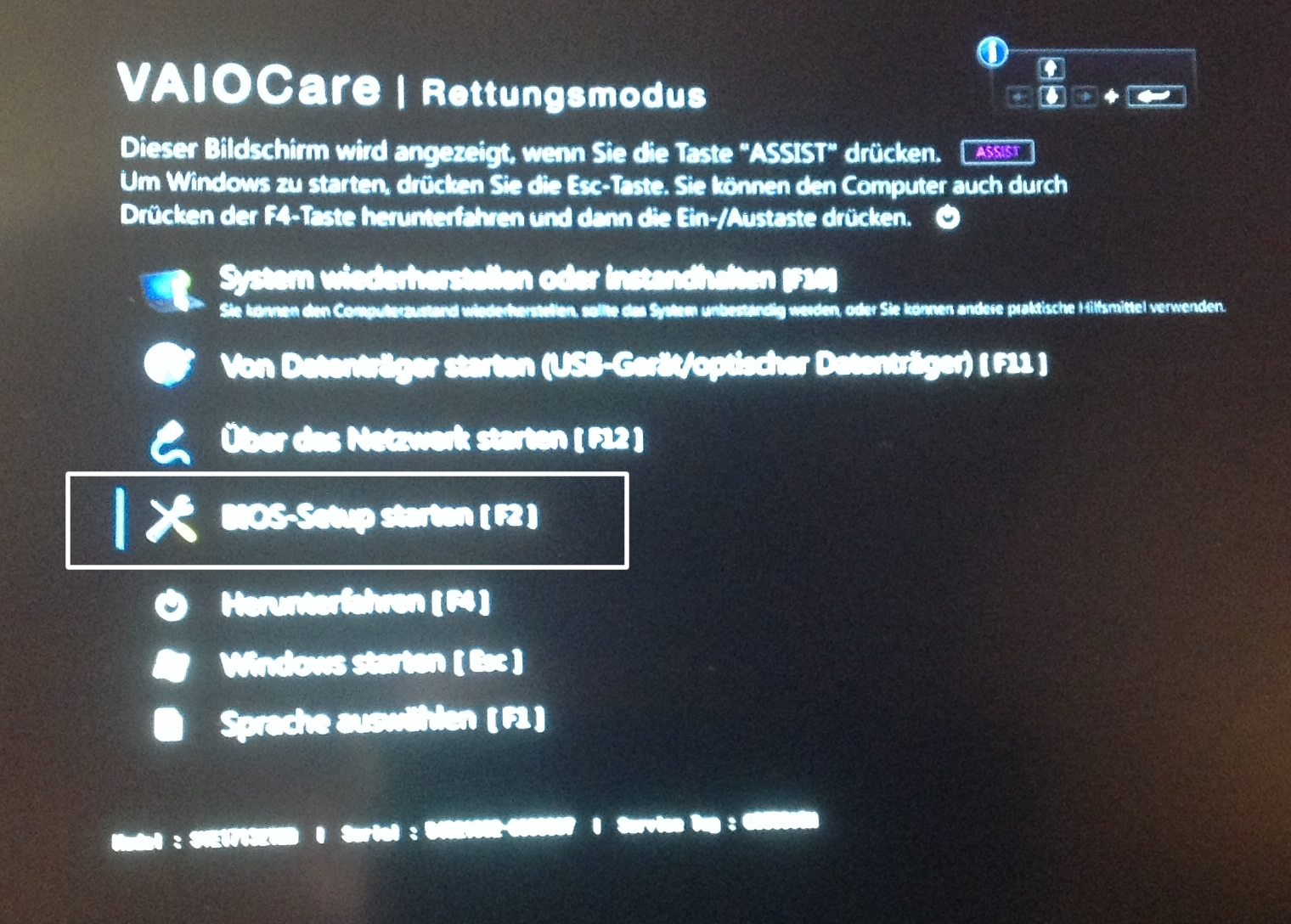
Finally again an old familiar view.
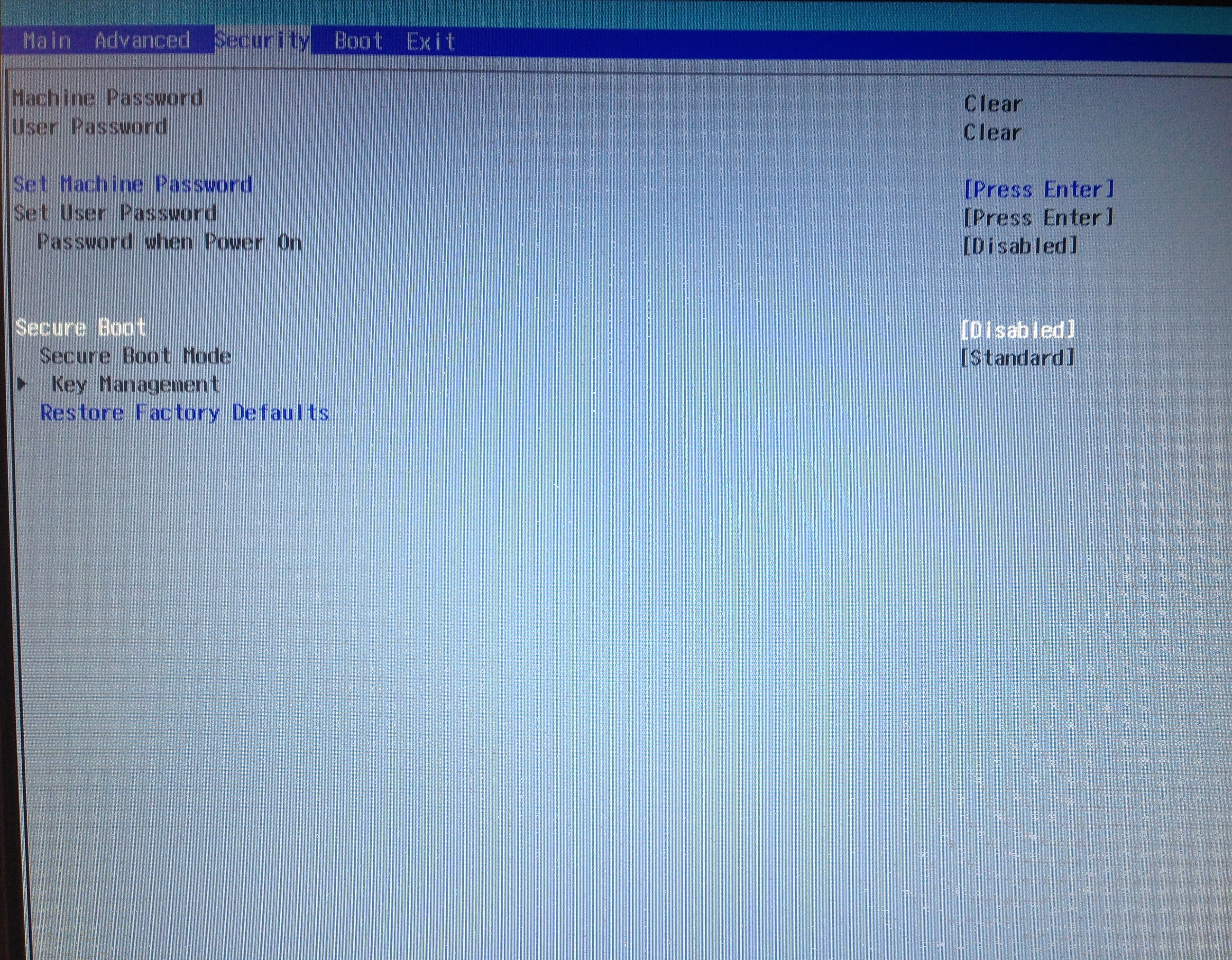
Now in the Security tab the Secure Boot Mode switch off.
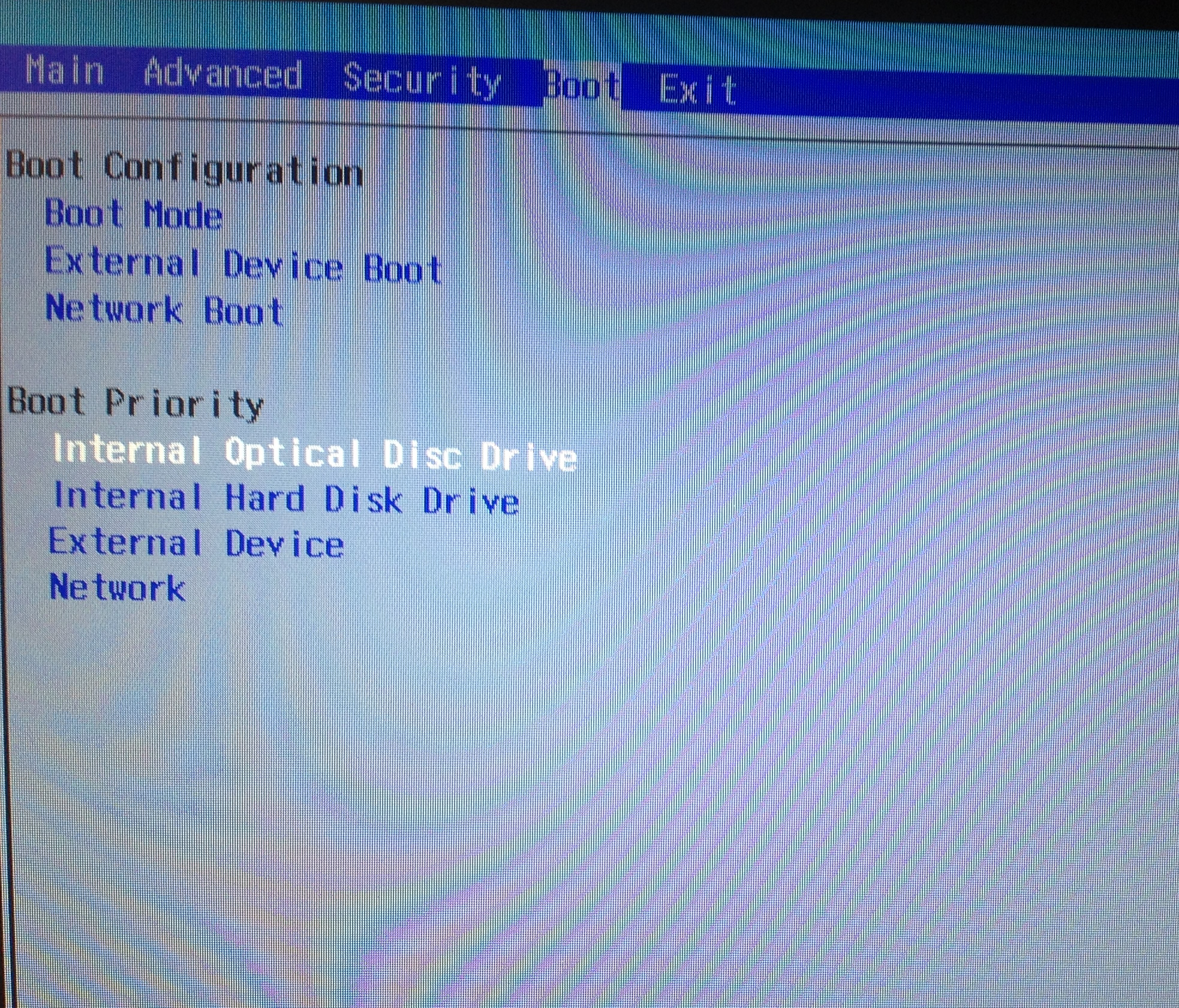
… and change the boot mode in the tab so that the Internal Optical Disc Drive comes first. You can navigate here with the arrow keys and change with the keys F5 and F6. After the boat order has been changed, you still have to Boot Mode from UEFI on Legacy change.
Now the Save and Close settings with the F10 button.
Now the Sony Notebook restarts again and starts to install Windows 7.

 order.
Sony Vaio E1713Z1EB Drivers hier.