
CRC errors: back up before attempting repairs – 19 September 2026
A CRC error reports a failed data check; it alone does not prove mechanical drive damage. The 2013 instructions below are historical. Their repair checkboxes are not a safe universal first step. This is editorial guidance, not a new hardware test.
CHKDSK /r includes /f, so it is not read-only. If a drive has input/output errors, plan data recovery before repairing its file system.
- Record the exact error, file, drive and connection. Stop experimenting if there are unusual noises, repeated disconnections or important unbacked-up data.
- Check an independent backup for completeness. Do not restore missing files to the affected drive or accept formatting or initialisation prompts.
- Only investigate a connection issue on a stable device without warning signs, following its manufacturer's instructions. Shut down and disconnect power before handling internal cables. Do not use repeated repairs as a diagnostic test.
- After backup or work on a copy, verify results by opening files and checking the report. A completed scan does not make a faulty drive reliable again.
The historical Smart Data Recovery link leads to another old article, not a verified current product recommendation. Recovery software cannot guarantee success. The screenshots show the Windows interface of that period, not Windows 11.
Sources
Historical original report — 03.09.2013
CRC error of hard drive repair
What is a CRC error? The original report explains that cyclic redundancy checking of a hard drive has failed: part of a file read from the drive does not match the expected value. The report interpreted this as indicating a damaged drive.
Historical repair procedure from 2013
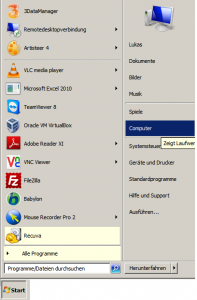
- Click Start, then Computer.
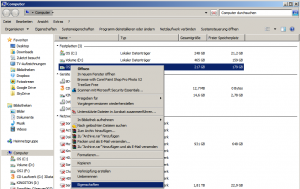
- Right-click the affected drive and select Properties.
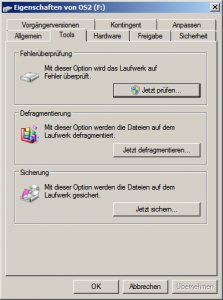
- Open the Tools tab.
- Under Error-checking, click Check now.
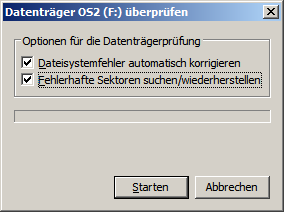
- Select Automatically fix file system errors and Scan for and attempt recovery of bad sectors.
- Click Start in the disk-check window to begin checking and repairing.
- When asked whether to schedule the check for the next computer startup, answer Yes.
- Restart the computer.
The original report mentioned recovery software for lost files but made no recommendation about whether recovery would succeed: a drive could be too severely damaged for software recovery.
The linked Smart Data Recovery article presents products. Smart Data Recovery